You can draw your own free-form Map Shapes on the LAMA map, and use them to search for objects (e.g. permits, projects, etc.) that fall within the shape, or to create a new object based on that shape (rather than on a selected address or parcel). You can also buffer shapes or points you've either selected or drawn by however many feet you choose.
The tools to draw a line or a polygon are on the drop-down list below the icon that looks like connected dots above a ruler. The choice on the left (with a question mark) is for drawing a line (for instance, for a parade permit application). The choice on the right is for creating a closed shape. They're called the Measuring Tools because in addition to adding lines to the map, they can also calculate distance and area.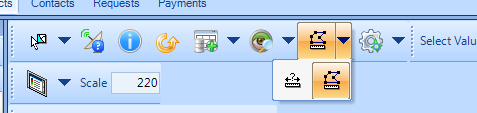
If you don't see the Measuring Tools on your map toolbar, right-click anywhere on the map toolbar and make sure that you have Map Tools selected.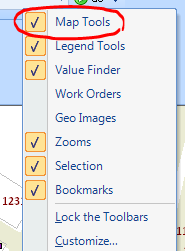
To draw a closed polygon, select the Polygon Measure and click on the map wherever you'd like to start drawing your shape. Your mouse pointer will look like a pencil when it's over the map.
Each single-click you make will add a new corner, and the line between your last click and your most recent line segment will turn blue.
When you're ready to add the last corner and close the shape, double-click on that corner.
As you move your mouse over the map between clicks, the red lines will show you what the shape would be if you double-clicked wherever your mouse is at that moment (it will also show you the length of those lines).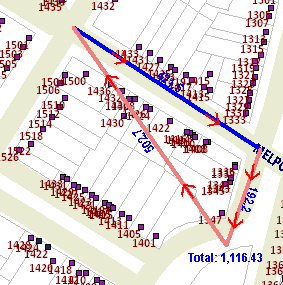
You can click as many times as you need in order to select a curved or oddly shaped area.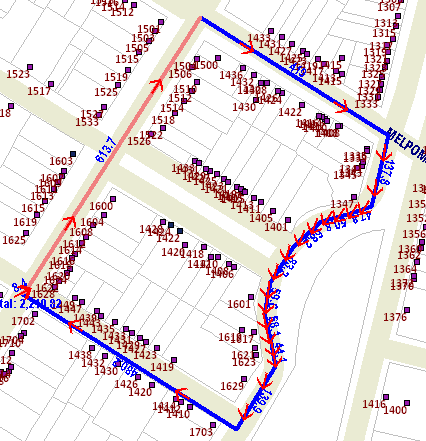
If the area you need to select doesn't all fit within your map view, you can pan by right-clicking near the edge of the map in the direction you want to move to.
Buffering
To buffer a shape you've selected or drawn, or a point you've selected (by selecting an address from the Addressing window, or by selecting a permit/license/project/etc. from the grid), click on the map menu tool that looks like a gear wheel and select "Buffer Selection".
If you have more than one item selected, click the drop-down arrow next to "Buffer Selected Features from Layer" to pick the correct item. In the example below, there's a permit selected in the grid, a map shape already buffered, and an address selected in the Addressing window to choose from:
After selecting the correct feature, you can set the number of feet for the buffer distance, and if the shape you're buffering is a polygon, you can choose whether to measure from the outside boundaries of the polygon or from its center, and click OK when you're finished:
Displaying Items within Your Shape
To search for items that fall within your map shape (e.g. all the permits within its extent), go to your Query Tree and scroll to Map Shapes. Expand the plus-sign next to the Map Shape node to see your shape (or shapes).
The grid will populate with all the permits (or projects, parcels, etc.) within your shape.
0 Comments